
Setup with Gemini API Key
Time needed: ~2 minutes Difficulty: Easy — no cloud project required
This is the recommended setup for most users. You’ll get a free API key from Google that lets Golden Retriever embed and search your documents using Google’s Gemini AI.
Step 1: Get your API key
Section titled “Step 1: Get your API key”- Open Google AI Studio in your browser
- Sign in with your Google account (any Google account works)
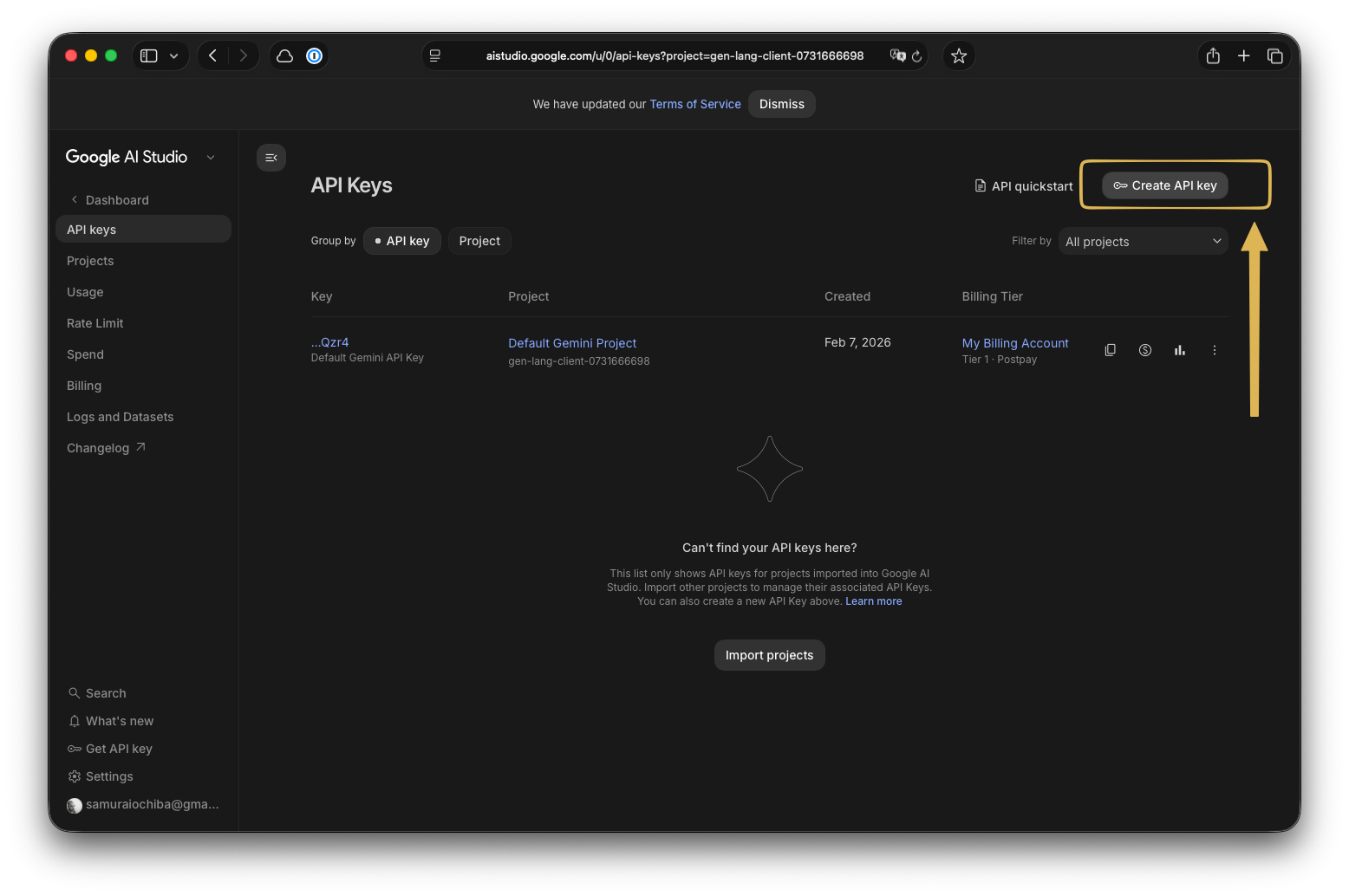
- Click “Create API Key”
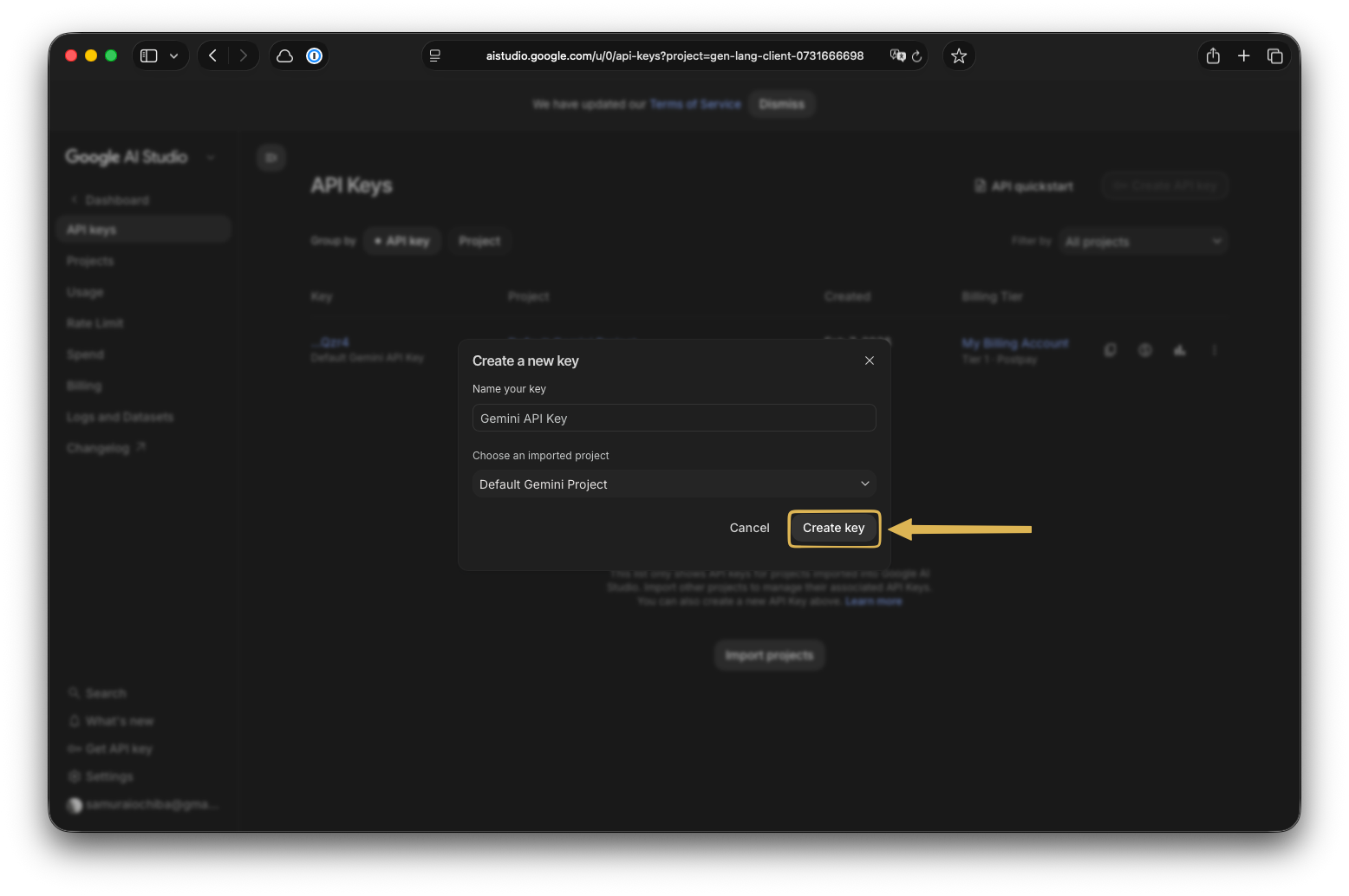
- Select “Create API key in new project” (or use an existing project)
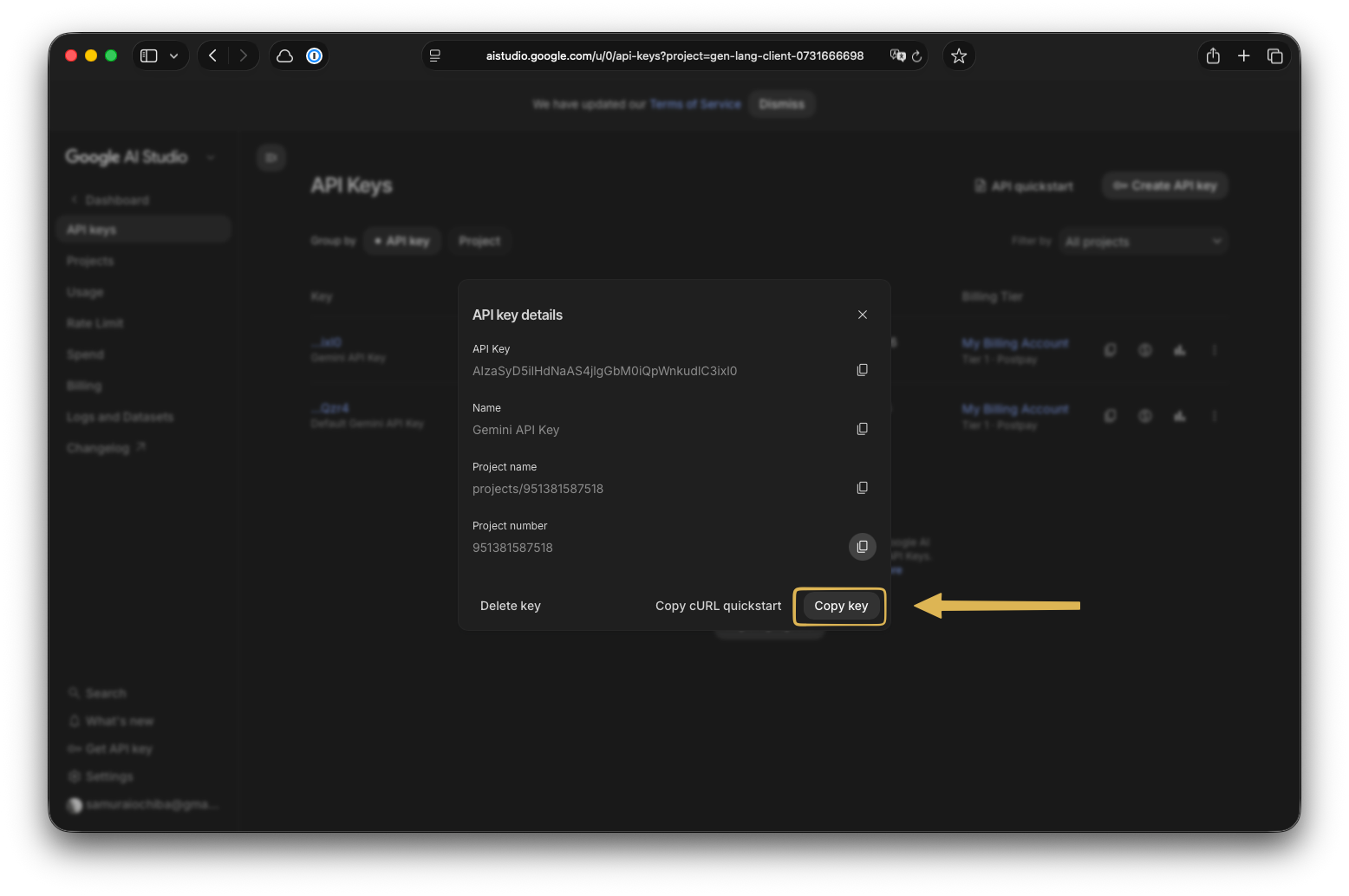
- Your API key will appear — copy it
The API Keys dashboard — click “Create API Key” in the top right.
Create a new key — select “Create API key in new project” and click “Create key”.
Copy your key — click “Copy key” to copy it to your clipboard.
Step 2: Paste into Golden Retriever
Section titled “Step 2: Paste into Golden Retriever”- Launch Golden Retriever
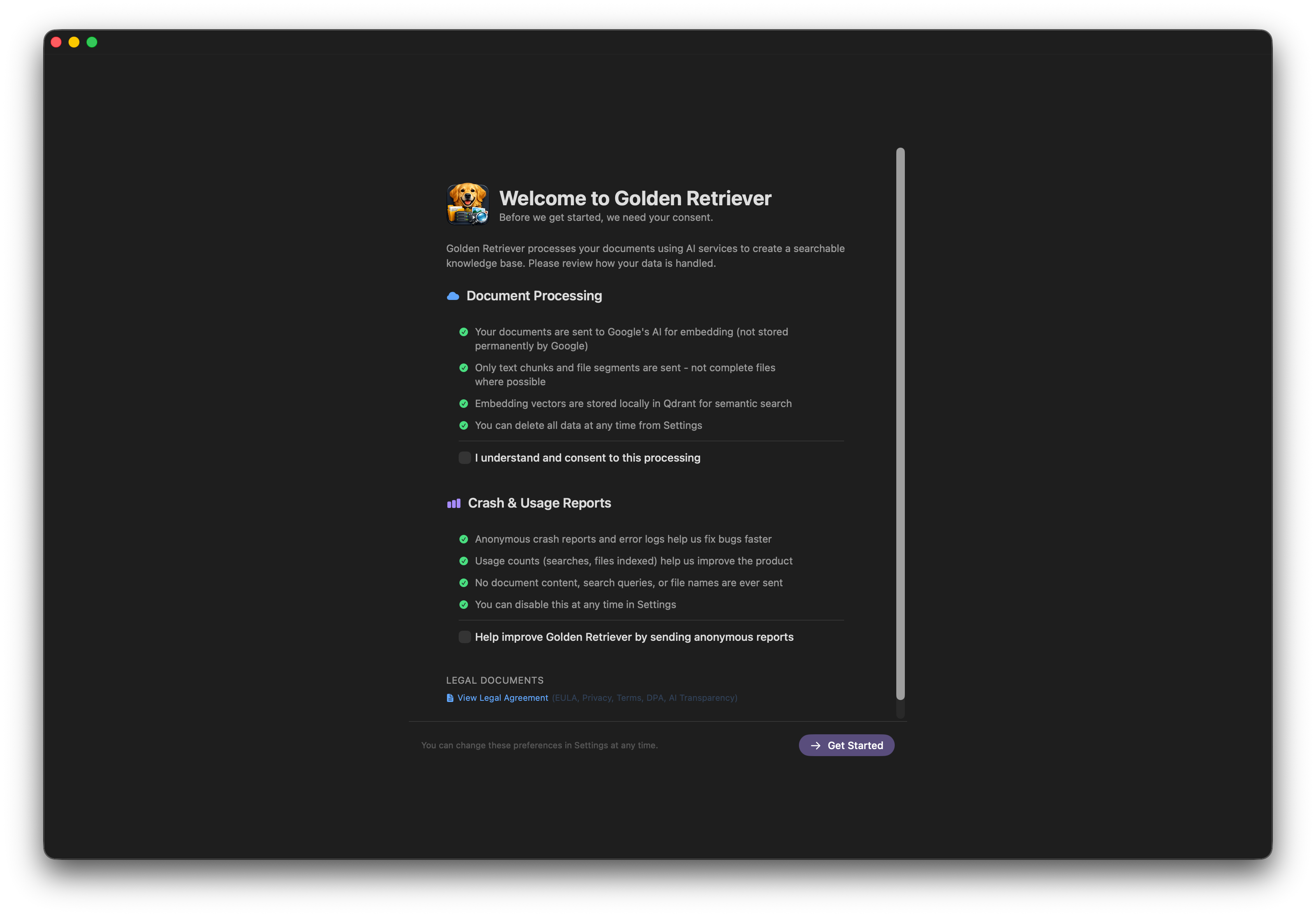
- On first launch, review the consent screen and click “Get Started”
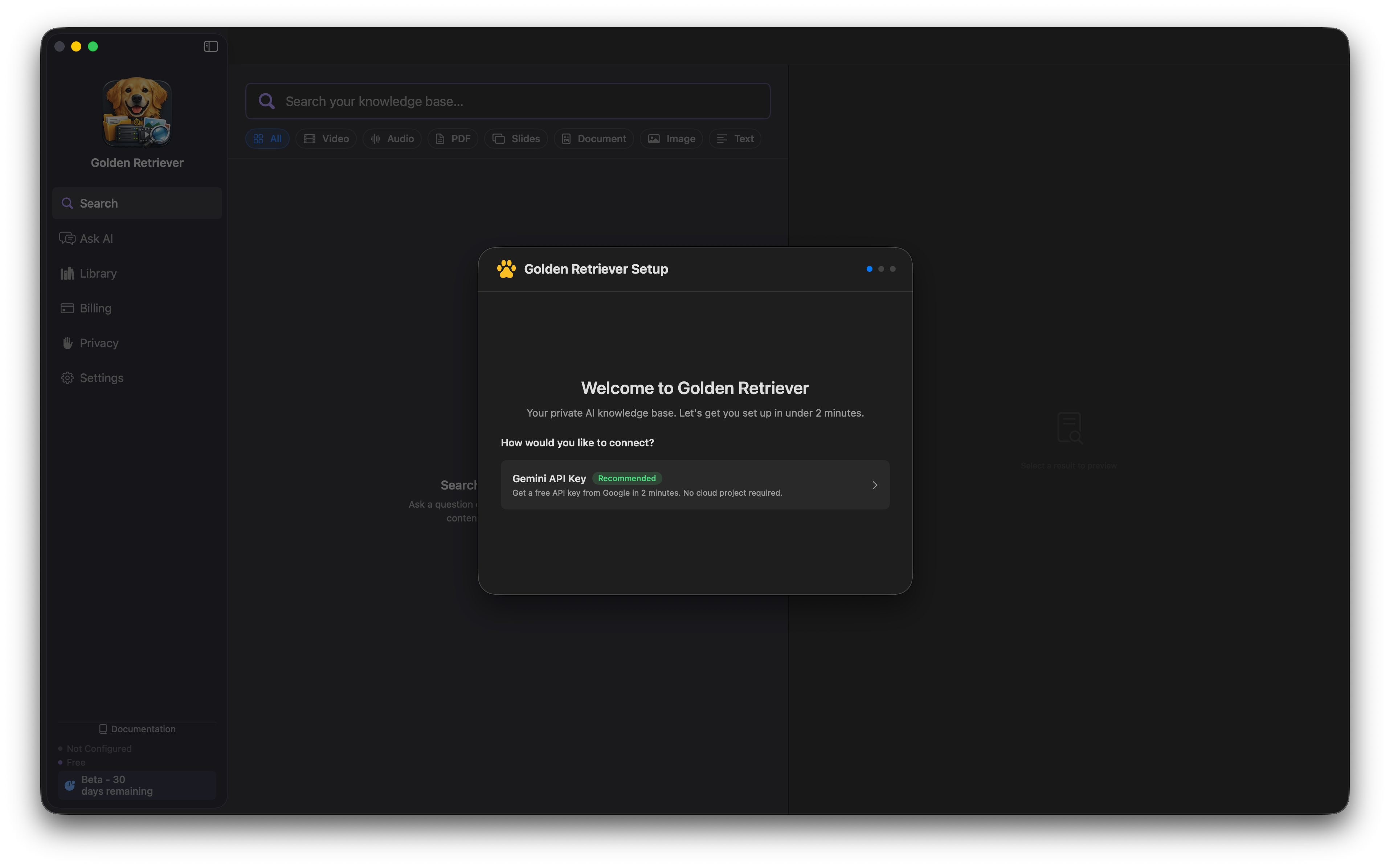
- The setup wizard appears — click “Gemini API Key” (the recommended option)
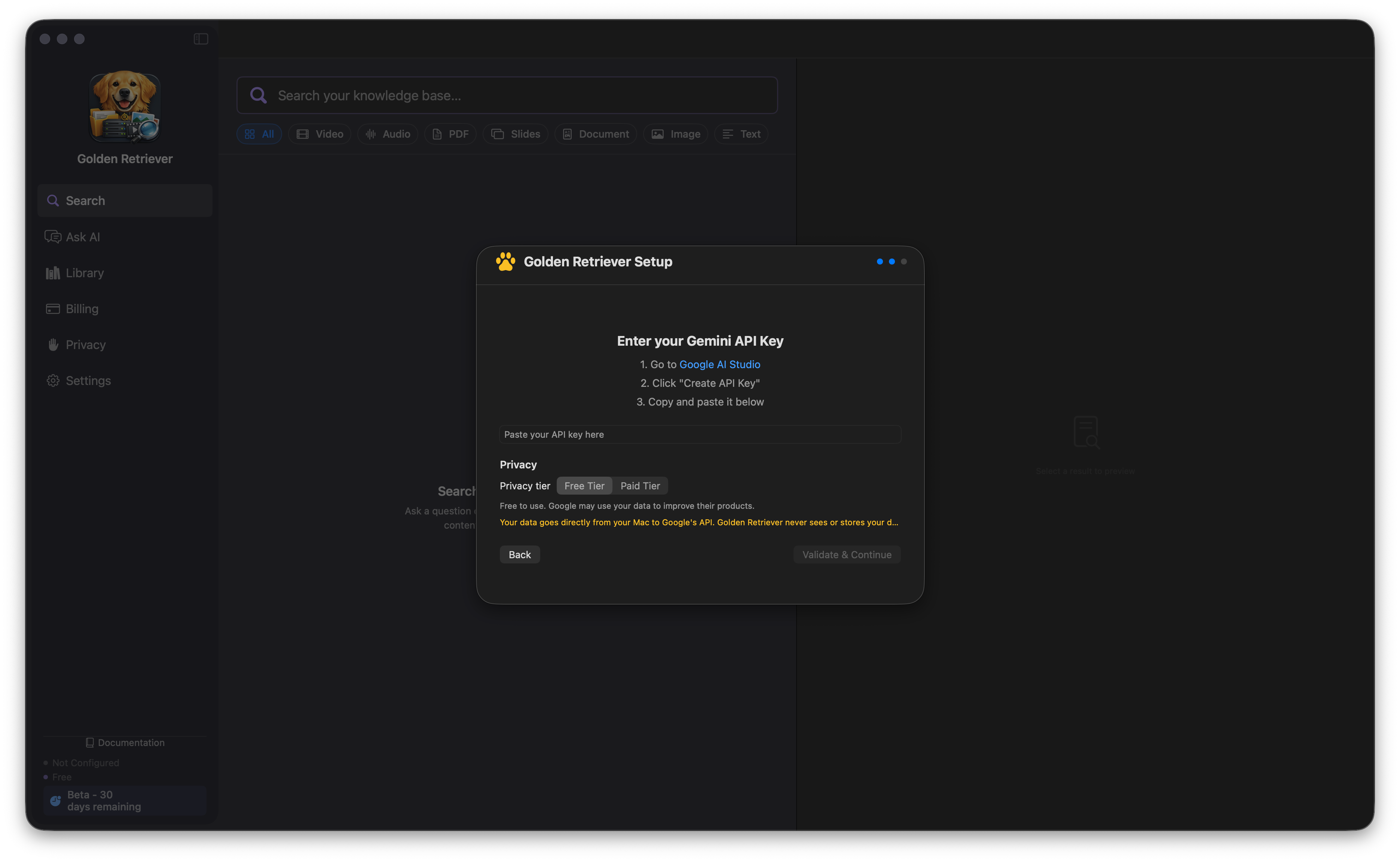
- Paste your API key into the field
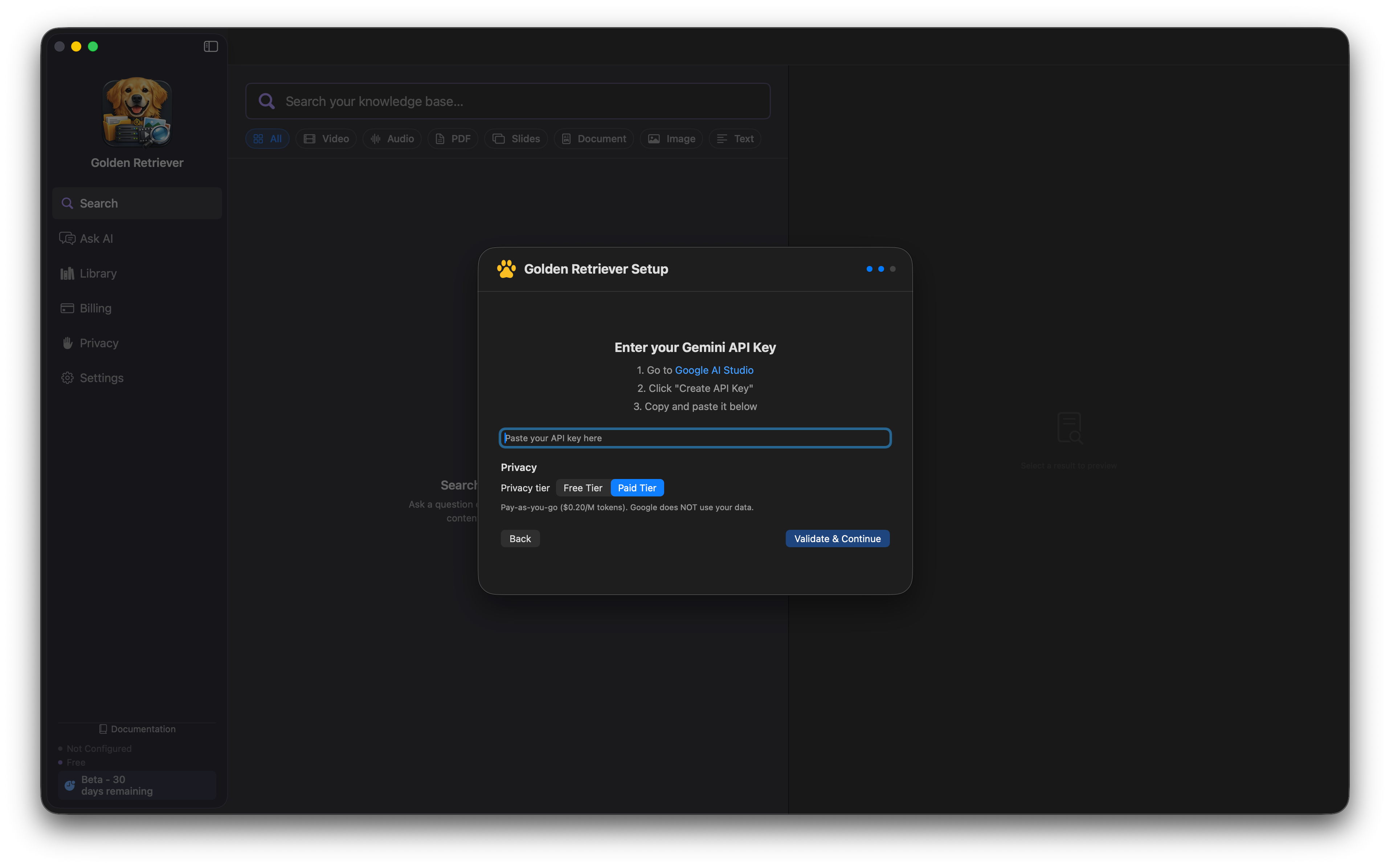
- Choose your privacy tier:
- Free Tier — No cost. Google may use your data to improve their products.
- Paid Tier — Pay-as-you-go ($0.20 per million tokens). Google does NOT use your data.
- Click “Validate & Continue”
Consent screen — review how your data is processed and click “Get Started”.
Choose your connection — select “Gemini API Key” (the recommended option).
Enter your API key (Free Tier) — paste your key and select the Free Tier for zero-cost usage.
Enter your API key (Paid Tier) — or select Paid Tier if you prefer Google not to use your data.
Step 3: You’re done
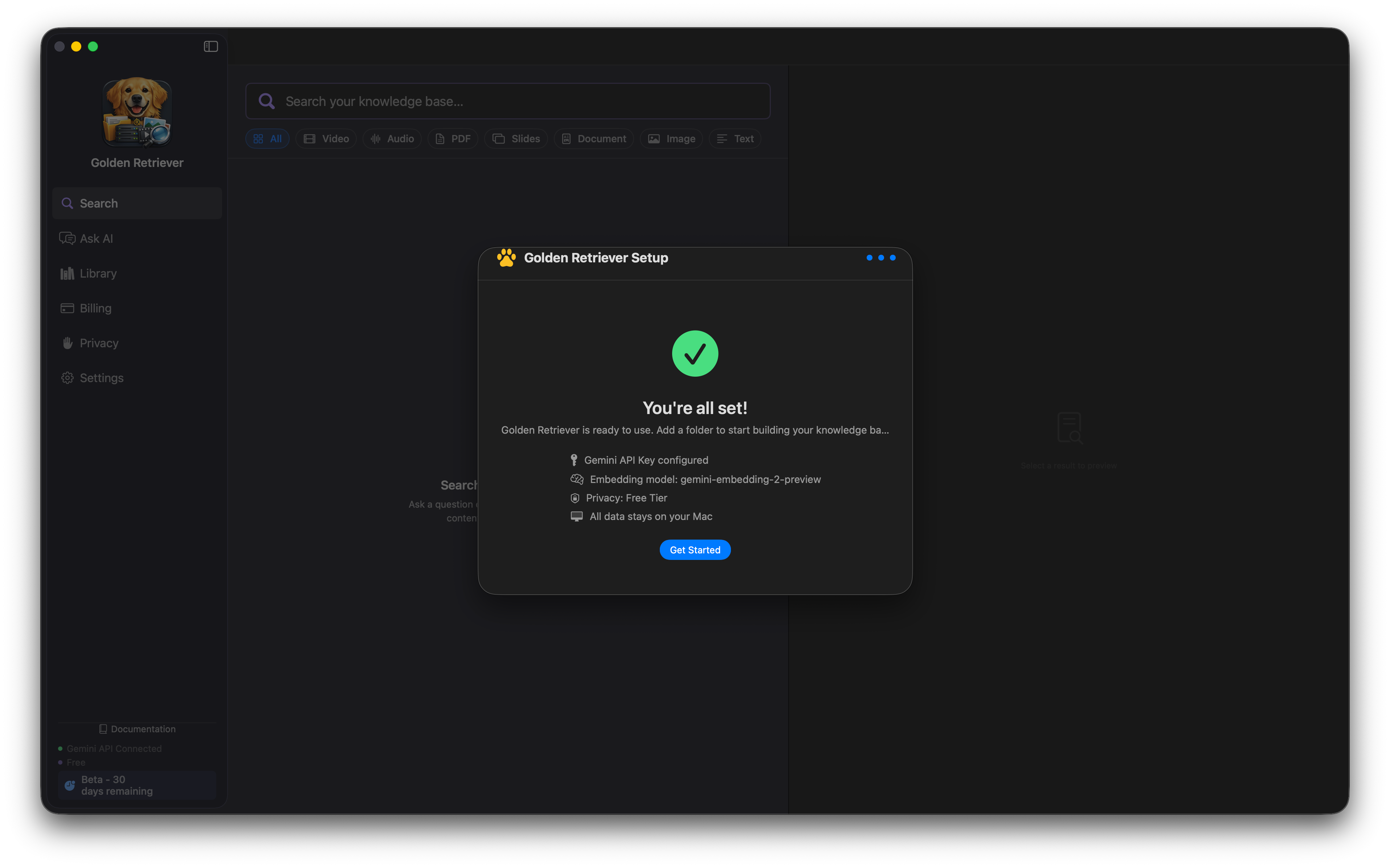
Section titled “Step 3: You’re done”After validation succeeds, you’ll see the confirmation screen. Click “Get Started” and you’re ready to use Golden Retriever.
Setup complete — your API key is configured and Golden Retriever is ready to use.
Next steps:
- Click Library in the sidebar to add folders to your knowledge base
- Golden Retriever will automatically embed your documents
- Use Search or Ask AI to query your knowledge base
Privacy & Data
Section titled “Privacy & Data”- Your library stays on your Mac. Golden Retriever doesn’t sync, copy, or upload your files. The vector index and metadata database are local.
- Content is sent to Google for AI features. To make search, transcription, description, and Q&A work, the relevant content of your files (document text, audio bytes, image bytes, video bytes) is sent directly from your Mac to Google’s Gemini API using your own API key. Golden Retriever (the company) never sees this traffic — it flows directly between your Mac and Google.
- Free tier: Google may use data sent through the free tier to improve their products.
- Paid tier: Google does NOT use your data. Upgrade at Google AI Studio to opt out.
- Processing region is the US (
us-central1). No EU region option for these models on the direct Gemini API currently.
Troubleshooting
Section titled “Troubleshooting”| Problem | Solution |
|---|---|
| ”API key is not authorized” | Make sure you copied the full key. Try creating a new one. |
| ”Network error” | Check your internet connection. The app needs to reach generativelanguage.googleapis.com. |
| ”Rate limited” | You’ve hit the free tier limit. Wait a minute and try again, or upgrade to paid tier. |
| Validation passes but embedding fails | Your key works but may have been restricted. Go to AI Studio and check for restrictions. |
Switching to Google Cloud (Vertex AI)
Section titled “Switching to Google Cloud (Vertex AI)”If you later need EU data residency or want costs on your GCP bill, you can switch:
- Open Settings → Cloud tab
- Click “Switch to Google Cloud (Vertex AI)”
- Follow the Vertex AI setup guide
Your existing embeddings and search data will continue to work — both paths use the same model.